
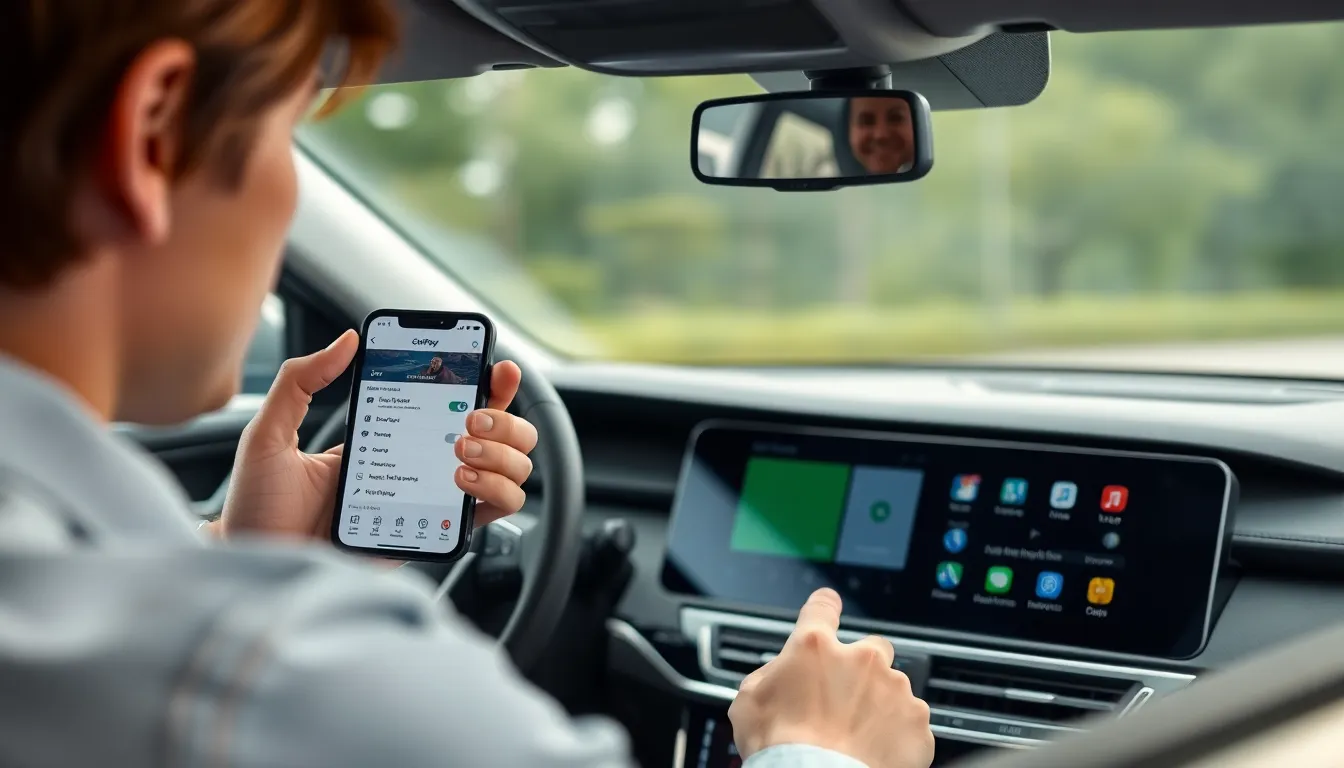

CarPlay can be a lifesaver, turning your car into a mini command center. But sometimes, it feels like that overly chatty friend who just won’t take a hint. When you need a break from the constant navigation prompts and music suggestions, knowing how to turn off CarPlay on your iPhone 14 is essential.
Understanding CarPlay on iPhone 14
CarPlay on the iPhone 14 enhances the driving experience by integrating the phone with the vehicle’s infotainment system. Users gain access to apps, navigation, and communication tools directly from their car’s display.
What Is CarPlay?
CarPlay is Apple’s interface designed to connect iPhones with compatible vehicles. It allows users to interact with their iPhone through their car’s onboard display using touch, voice, or physical controls. This setup enables seamless access to navigation apps, music, and messages, providing a hands-free way to stay connected while driving.
Benefits of Using CarPlay
Using CarPlay offers numerous advantages for drivers. Enhanced safety ranks high, as it minimizes distractions by allowing voice commands and simplified controls. Users can receive directions without needing to glance at their phones, and they can listen to music or respond to messages with voice dictation. Accessibility of popular apps, like Spotify or Google Maps, ensures that users enjoy a personalized experience tailored to their preferences. Lastly, updating the system is often automatic, keeping the user’s experience current and feature-rich.
How to Turn Off CarPlay on iPhone 14
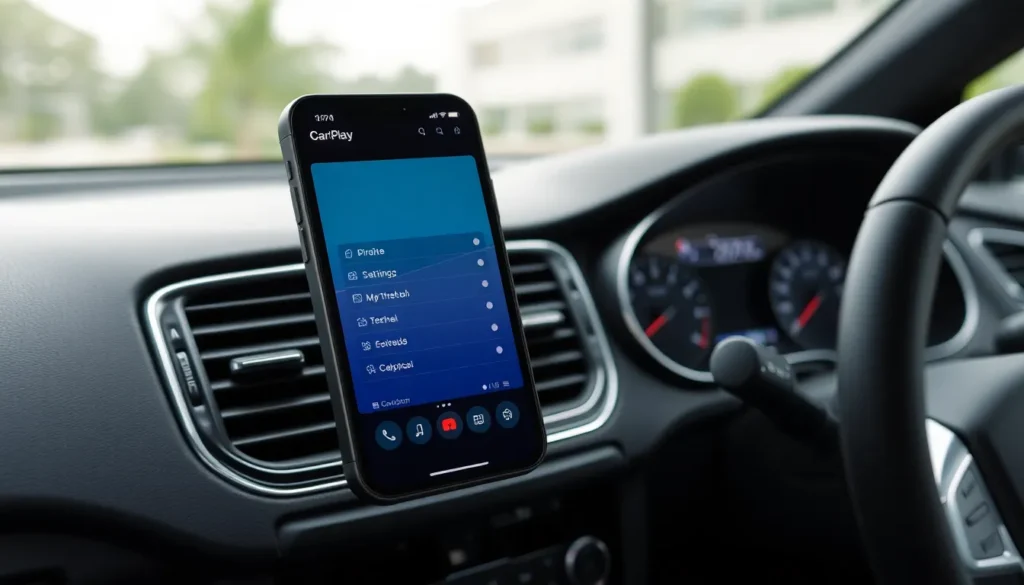
Turning off CarPlay on the iPhone 14 is straightforward. Users can manage this feature directly through their device settings or their vehicle’s system.
Disabling CarPlay via iPhone Settings
To disable CarPlay via iPhone settings, access the Settings app. Scroll down and select General, then tap CarPlay. Choose the connected vehicle’s name. From there, the user can select “Forget This Car” to permanently disconnect CarPlay. This action removes the vehicle from the list of recognized devices. Next time, the user must reconnect to activate CarPlay again.
Turning Off CarPlay in the Vehicle
Turning off CarPlay in the vehicle can also be effective. Most vehicles with CarPlay have an option on the display. Look for the CarPlay or smartphone integration settings on the infotainment system. Options may vary by manufacturer, but usually, there’s a toggle available to disable CarPlay temporarily. If needed, users can return to settings to enable it again. Some vehicles allow immediate disconnection by unplugging the iPhone or selecting another audio source.
Troubleshooting Common Issues
Users may encounter several challenges when trying to disable CarPlay on their iPhone 14 or through their vehicle. Recognizing these common issues allows for smoother navigation during the process.
Issues When Disabling CarPlay
Disconnected devices often pose a significant problem. Users should verify their iPhone’s Bluetooth connection and ensure Bluetooth is enabled. Vehicles may not always register the disconnection promptly, leading to frustration. In some cases, the CarPlay feature may still appear active even after users attempt to disable it. This lingering connection can cause confusion and unmet expectations.
Solutions for CarPlay Connectivity Problems
Addressing connectivity concerns can lead to a better experience. Restarting both the iPhone and the vehicle’s infotainment system often resolves minor glitches. Ensuring software updates are current for both the iPhone and the vehicle can enhance compatibility. Users might find success by searching the Settings app for additional CarPlay options, allowing for a more customized experience. Disconnecting and reconnecting the iPhone to the USB port may also prove effective in re-establishing a proper connection.
Alternative Options
Exploring alternatives to CarPlay offers a different way to connect an iPhone 14 to a vehicle. Bluetooth serves as a user-friendly option for hands-free calls and music streaming. To activate Bluetooth, users can enable it in Settings, then pair their device with the car. USB connections provide additional reliability, particularly for charging while using music and navigation apps. Wireless connections may also be possible depending on the vehicle model.
Customizing in-car experiences enhances overall enjoyment during drives. Users can tweak audio settings to improve sound quality from their iPhone. Personalizing navigation apps allows for preferred routes and settings. Adjusting screen layouts on the vehicle’s infotainment system can make accessing features easier. Exploring other third-party apps might also enrich the driving experience while reducing reliance on CarPlay.
Turning off CarPlay on the iPhone 14 is a straightforward process that can provide users with a much-needed break from its constant notifications and suggestions. Whether choosing to disable it through the iPhone settings or the vehicle’s infotainment system, users have flexible options at their disposal.
Addressing common troubleshooting issues can further enhance the experience when reconnecting or using alternative methods such as Bluetooth. Exploring these options helps users tailor their in-car experience to their preferences. Ultimately, knowing how to manage CarPlay effectively allows for a more enjoyable and personalized driving experience.


