
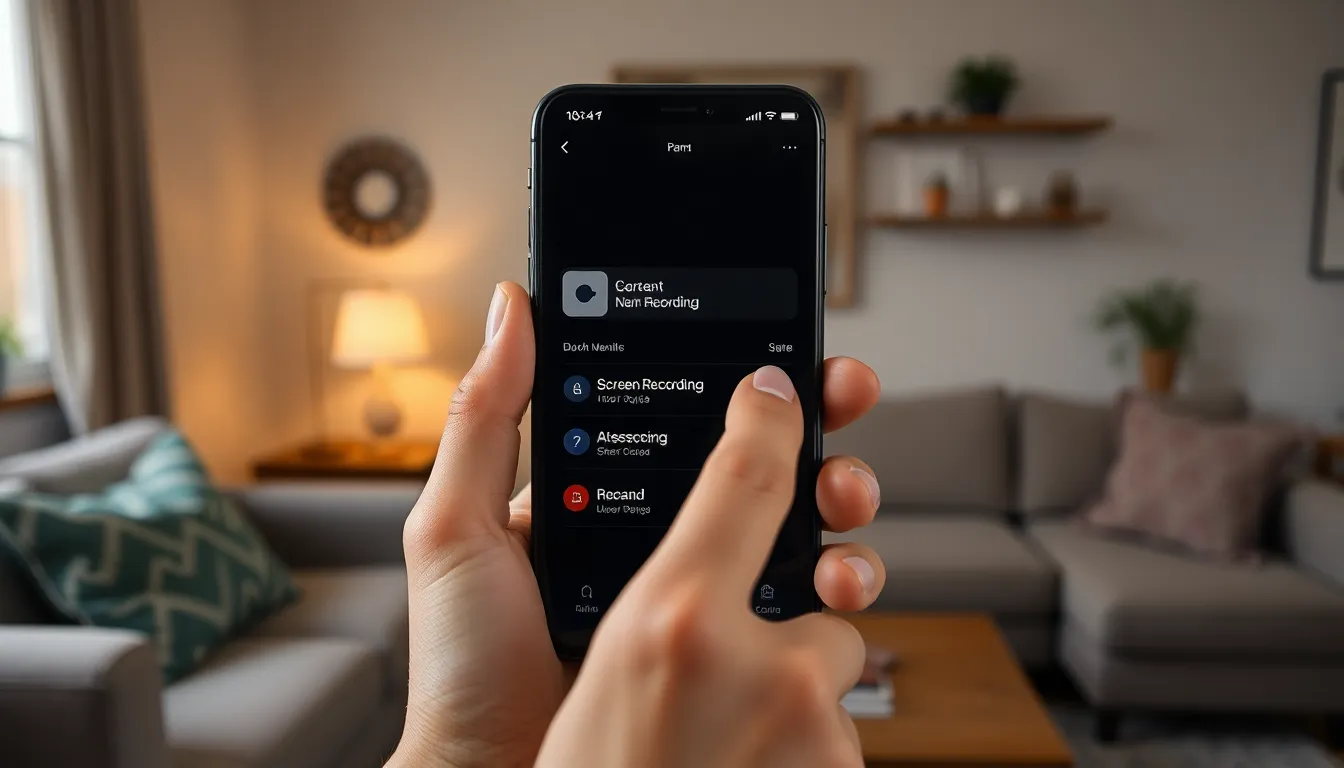

Ever found yourself in a situation where you needed to capture that epic gaming moment or a hilarious video call on your iPhone 8? You’re not alone! Screen recording has become the secret weapon of savvy iPhone users, allowing them to immortalize their digital masterpieces with just a few taps.
Understanding Screen Recording on iPhone 8
Screen recording allows users to capture activities on their iPhone 8 screens. This built-in feature simplifies the process of creating tutorials, sharing gameplay, or saving important video calls. Activating it only takes a few taps, making it accessible to all users.
The screen recording function can be enabled in the Control Center. Users can find the Control Center by swiping up from the bottom of the screen. Once the feature is active, a white circle icon appears, indicating the recording is ready to start.
Recording starts upon tapping the icon. A countdown appears, providing users a brief moment to prepare before capturing. During the recording, users can navigate apps, play games, or interact with videos as usual, capturing everything on the display.
It’s crucial to note that audio can also be included in recordings. To record sound, users should long-press the screen recording icon, activating the microphone. This feature enhances tutorials and gaming videos, allowing for commentary or background music.
After recording, users can stop it by tapping the red status bar at the top of the screen. The video saves automatically in the Photos app, where users can edit or share it as desired. Additionally, sharing options include AirDrop, email, or social media platforms, facilitating easy dissemination of recorded content.
Understanding these steps empowers users to effortlessly create and share their digital experiences, making screen recording an invaluable tool on the iPhone 8.
Preparing Your iPhone 8 for Screen Recording

Screen recording on the iPhone 8 demands a few preparatory steps to achieve optimal results. Users should first ensure their device is fully ready for this useful feature.
Checking Software Version
iPhone 8 requires iOS 11 or later for screen recording. To check the software version, individuals navigate to Settings, followed by General, and tap about. Here, the current iOS version displays prominently. If the device runs an earlier version, users should update it. Going to Settings, tapping General, then Software Update initiates the update process. By staying updated, users can access the latest features and improve performance.
Enabling Screen Recording in Settings
Enabling screen recording is straightforward. Users should go to Settings and select Control Center. From there, tap Customize Controls. In this menu, individuals find Screen Recording within the more controls list. Tapping the green plus sign adds it to the Control Center. With this setup, accessing screen recording becomes quick and easy. After these steps, users can enjoy capturing their screens with minimal effort.
How to Screen Record iPhone 8
Screen recording on the iPhone 8 allows users to easily capture their screen activities. This feature is simple to activate and use, making it ideal for sharing moments.
Starting a Screen Recording
To start a screen recording, swipe up from the bottom of the screen to access the Control Center. Look for the Screen Recording icon that resembles a dot inside a circle. Tapping this icon triggers a countdown from three, giving users time to prepare for their recording. If audio capture is needed, users must long-press the Screen Recording icon before starting to enable the microphone. Selecting the appropriate option ensures all desired audio is recorded. The recording captures everything on the screen, making it perfect for games or tutorials.
Stopping a Screen Recording
Stopping a screen recording is just as straightforward. Users can tap the red status bar located at the top of the screen, which prompts a confirmation to stop the recording. Alternatively, they can return to the Control Center and tap the Screen Recording icon again. Once the recording halts, a notification confirms that the video has saved to the Photos app. Users can now access their recordings, making it easy to edit or share them with others.
Accessing and Editing Your Recorded Videos
Accessing recorded videos on an iPhone 8 is straightforward. Screen recordings save automatically to the Photos app. She can find her videos in the Library tab by looking for the “Videos” album or scrolling through the camera roll. Tapping on the desired video allows for easy viewing.
Viewing Your Screen Recordings
Users view their recordings by opening the Photos app. They can also select “Albums” to quickly navigate to the “Screenshots” section, which includes screen recordings. With just a tap, recorded videos play back, showcasing everything captured during the screen recording session. This playback feature allows for an effortless review of content.
Editing Options Available
Editing options for screen recordings provide users with various tools. The Photos app includes basic editing functions like trimming and cropping. To trim, users can tap “Edit” and adjust the sliders to select preferred start and end points. For further adjustments, third-party apps from the App Store offer advanced options like adding music or effects. These editing features enhance videos, enabling users to create polished content easily.
Mastering screen recording on the iPhone 8 opens up a world of possibilities for users. Whether capturing gameplay or preserving special moments during video calls it’s a straightforward process that enhances digital interactions. With just a few taps in the Control Center users can effortlessly record their screens and share their experiences.
The ability to edit and manage recordings in the Photos app further enriches this feature. By following the simple steps outlined users can make the most of their iPhone 8’s capabilities. Embracing screen recording not only simplifies content creation but also allows users to relive and share their favorite moments with ease.


