


In a world where apps seem to update faster than you can say “iPhone,” it’s easy to feel overwhelmed. While automatic updates can be a lifesaver, they can also lead to surprise changes that leave users scratching their heads. Imagine sipping your morning coffee, only to find your favorite app has morphed into something unrecognizable. Yikes!
Understanding Automatic Updates on iPhone
Automatic updates on iPhone ensure that apps stay current without manual intervention. These updates can install new features, enhance security, and improve performance.
What Are Automatic Updates?
Automatic updates refer to a feature that downloads and installs app updates automatically. This feature eliminates the need for users to check for updates regularly. Users can enable or disable these updates in the settings of their devices. Notifications about updates may still appear, informing users of changes and improvements.
Benefits of Automatic Updates
Automatic updates offer several advantages for users. They ensure that apps have the latest security patches to protect against vulnerabilities. Users experience improved app performance and access to the latest features without taking time from their day. Additionally, enabling automatic updates can save users from forgetting to update apps, which may lead to compatibility issues.
Steps to Turn Off Automatic Updates for Apps on iPhone
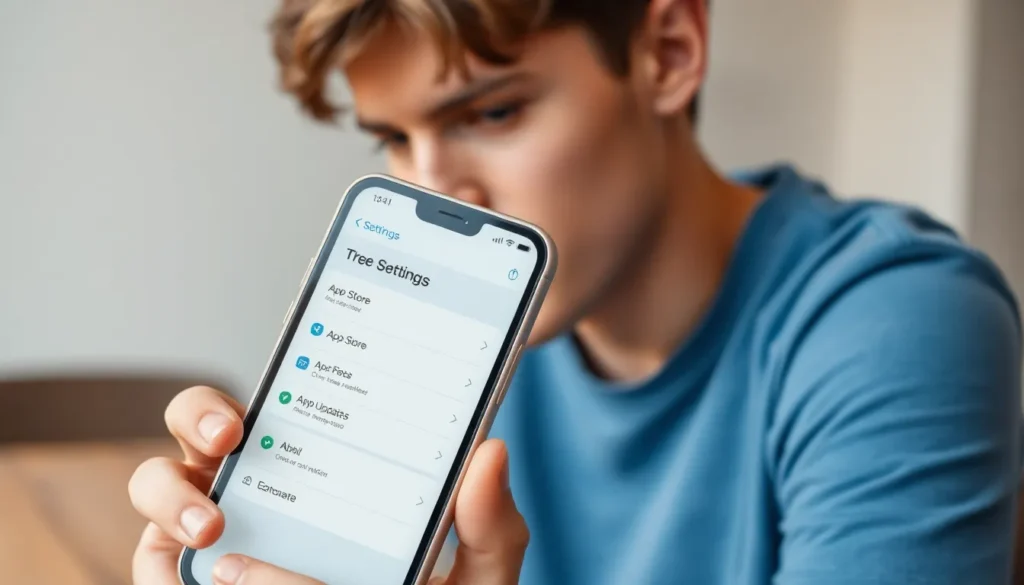
Turning off automatic updates can provide users with control over their app experiences. Follow these steps to manage this feature.
Accessing Settings
Open the Settings app on the iPhone. Scroll down until reaching the option labeled “App Store.” Tap on this option for app-specific settings. Users will find various preferences for managing downloads and updates. Locate the section for automatic downloads, which details preferences related to app updates.
Disabling Automatic Updates
Find the toggle labeled “App Updates.” A simple tap on this toggle switches it off. Users will no longer receive automatic updates when disabled. This action allows for more manual control of which app versions get installed. Users can still check for updates manually through the App Store anytime.
Troubleshooting Common Issues
Users might encounter specific issues when managing app update settings on their iPhones. Understanding app-specific options can help address these concerns effectively.
App-Specific Update Settings
Some apps may have their own update preferences. Access the app directly, then navigate to its settings to find individual update options. Users can toggle automatic updates on or off, depending on their needs. Not all apps support this feature, as it varies by developer. Checking each app’s unique settings provides clearer control over updates.
Re-enabling Automatic Updates
When users want to turn automatic updates back on for their apps, the process is straightforward. Access the Settings app and navigate to the “App Store” section. Locate the toggle labeled “App Updates” and switch it back on to resume automatic downloading and installation. It’s important to stay informed about updates to benefit from new features and security patches. Regularly checking the App Store remains useful for managing app versions even after re-enabling automatic updates.
Alternatives to Automatic Updates
Some users prefer alternatives to automatic updates for maintaining control over their apps. Manual processes and selective update options allow for personalized app management.
Manual Update Process
Users can engage in a manual update process for their apps whenever they choose. By opening the App Store, they can tap on their account icon in the top right corner. After selecting “Updates,” users view all available updates for their installed apps. Tapping “Update” next to each app allows for selective updating. This approach enables users to prioritize updates based on their necessity and preferences.
Using Wi-Fi Only for Updates
Opting to use Wi-Fi only for updates is another effective method. Users can configure their iPhone settings to allow updates solely when connected to a Wi-Fi network. This setting helps conserve cellular data and ensures updates happen only in stable connections. To enable this, users navigate to Settings, select App Store, and toggle on the option for Wi-Fi only under the automatic download section. This combination maintains up-to-date apps while managing bandwidth usage.
Turning off automatic updates on an iPhone gives users greater control over their app experience. By following simple steps in the Settings app, individuals can choose when to update their apps. This approach allows them to avoid unexpected changes and manage app versions according to their preferences.
While automatic updates offer convenience and security, the option to disable them ensures that users can stay informed about updates without the automatic installation process. Regularly checking the App Store for updates remains a beneficial practice, allowing users to selectively install new features and enhancements. With these strategies, users can tailor their app management to fit their needs while enjoying the benefits of their iPhone.


